Saturday, 19 October 2019

Determine the IP Address of a Printer in C#

Determine the IP Address of a Printer in C#


Using System.Printing

 var server = new PrintServer();
            var queues = server.GetPrintQueues(new[] { EnumeratedPrintQueueTypes.Local, EnumeratedPrintQueueTypes.Connections });
            foreach (var queue in queues)
            {
                string printerName = queue.Name;
                string printerPort = queue.QueuePort.Name;
             }

How to find ip address of printer on local network using c# application?

Print Crystal Report Directly in Windows application

Print Crystal Report Directly in Windows application


 Crsytalreport1.SetDatabaseLogon("DatbaseUserName", "password", "server", "database");
                            Crsytalreport1.SetParameterValue("@Barcode", value);
                            crystalReportViewer1.ReportSource = Crsytalreport1;
                            settings.PrinterName = "Printer Name";
                            barc1.PrintToPrinter(1, false, 0, 0);

Print Div using javascript

function print_specific_div_content(){
var win = window.open('','','left=0,top=0,width=552,height=477,toolbar=0,scrollbars=0,status =0');
var content = "<html>";
content += "<body onload="\"window.print();" window.close();\"="">";
content += document.getElementById("divToPrint").innerHTML ;
content += "</body>";
content += "</html>";
win.document.write(content);
win.document.close();
}

JavaScript Window print() Method

JavaScript | Window print() Method

Page print in JavaScript is a simple code in JavaScript used to print the content of the web pages.
  • The print() method prints the contents of the current window.
  • It basically opens Print dialog box which lets you choose between various printing options.
Syntax:
window.print()
Parameters: No parameters required
Returns: This function do not return anything

Print Crystal Report at Client Side Printer in ASP.NET


Print Crystal Report at Client Side Printer in ASP.NET


The following is the procedure.

Note: To use Crystal Reports in Visual Studio 2010, you need to download CRforVS_13_0.exe and install it.

Step 1
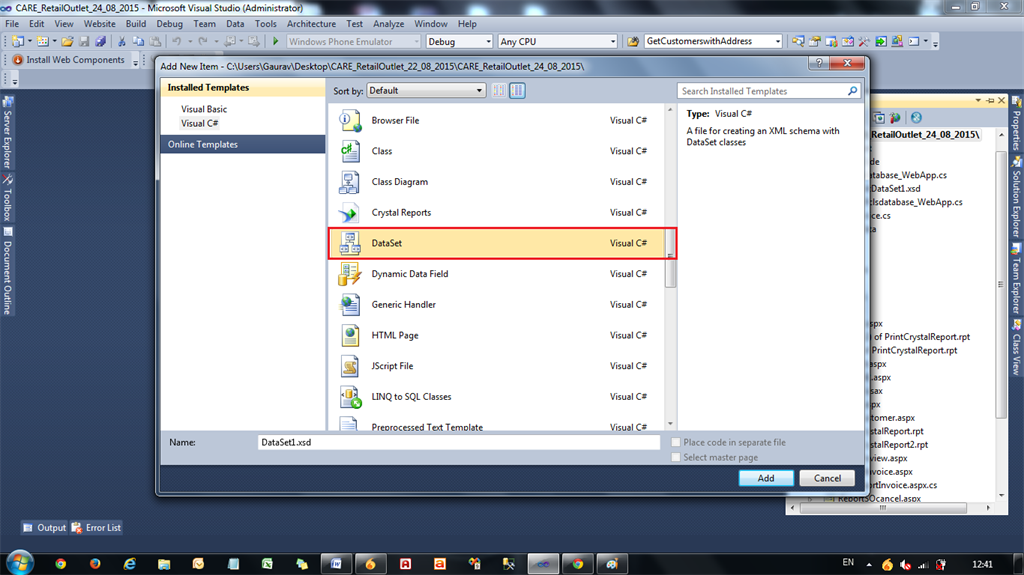
Create a new Dataset in your existing project.

In Solution Explorer select Add New Item, then Dataset1.

Step 2
 
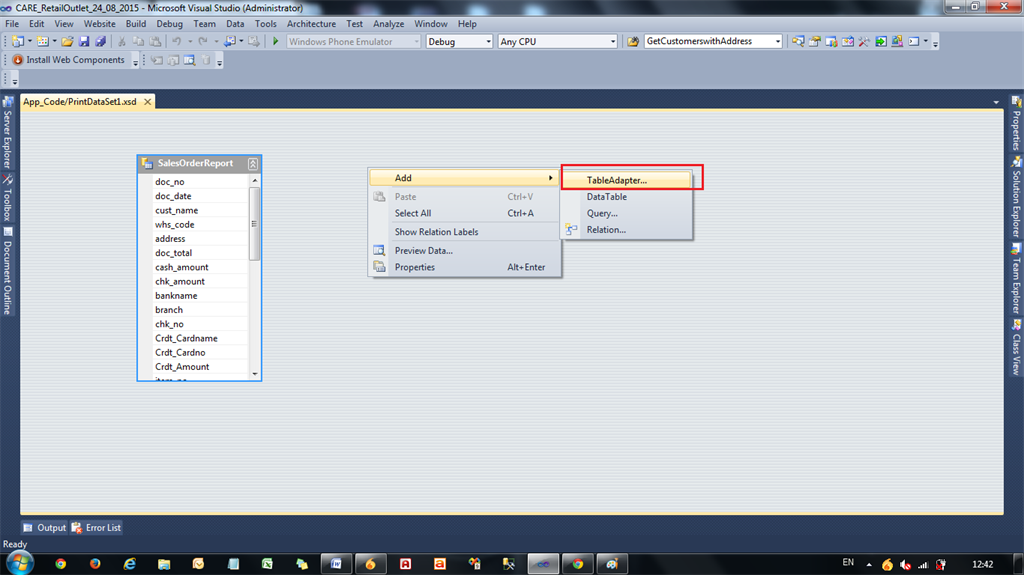
In Dataset Add, then click Table Adapter.


Step 3
 
In this Table Adapter, Add Columns depending on the Database Tables fields.

Note: In this Table Adapter the column name must be the same as the database table fields.

Step 4
 
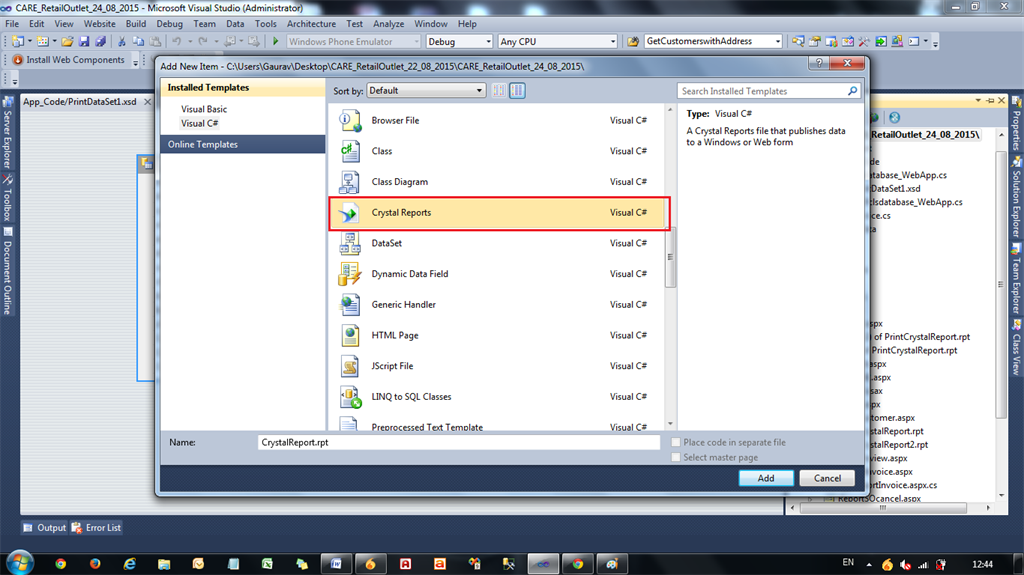
Add New Item, then select Crystal Reports.


Step 5
 
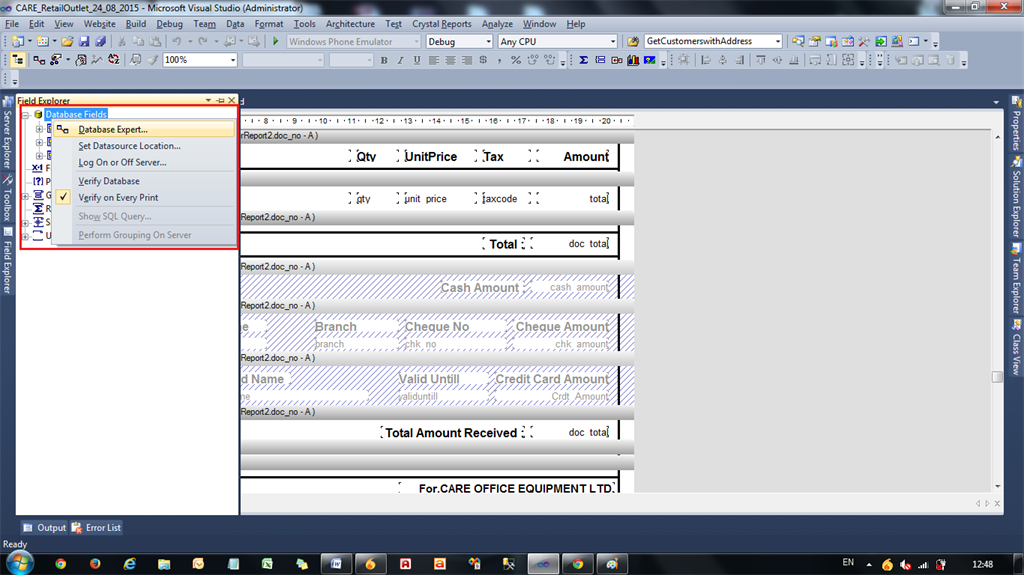
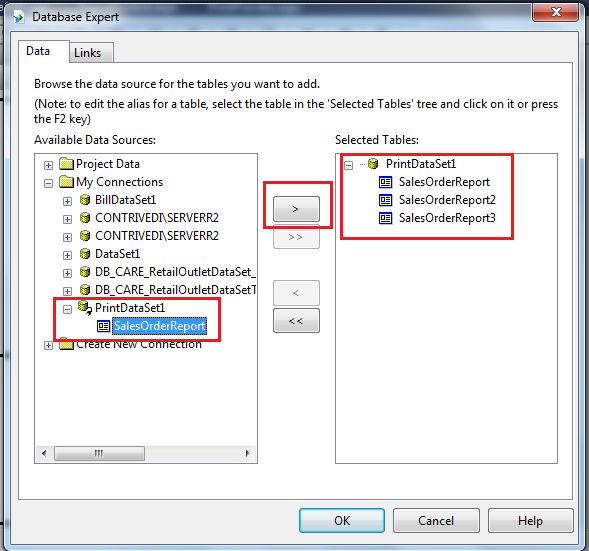
In the Crystal Reports Field Explorer Menu select Database Fields -> Database Expert.


Step 6
 
Choose the previously created Dataset from the List then drag any DataTableAdapter to the right side.

DataTableAdapter

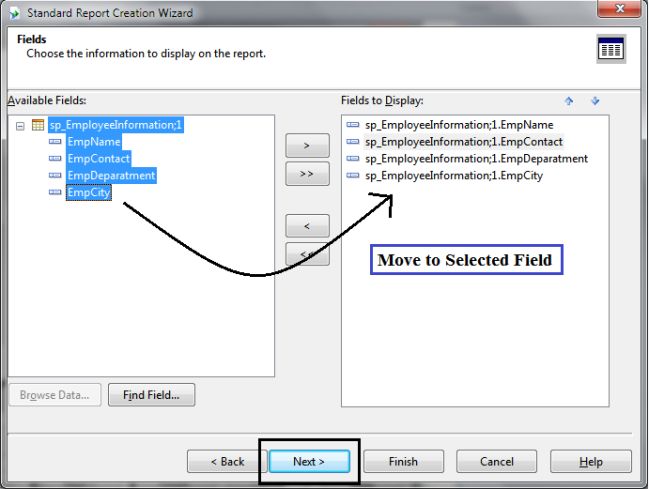
Click Next

move field

Choose the field to display.

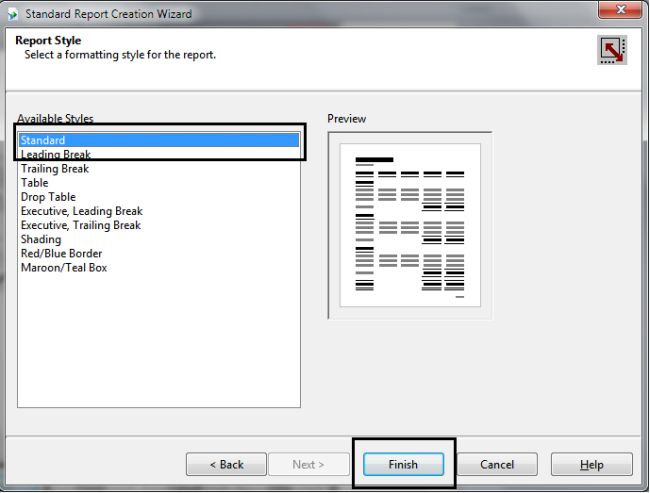
click finish

Choose Report Display Format.

Click Finish.

Step 7
 
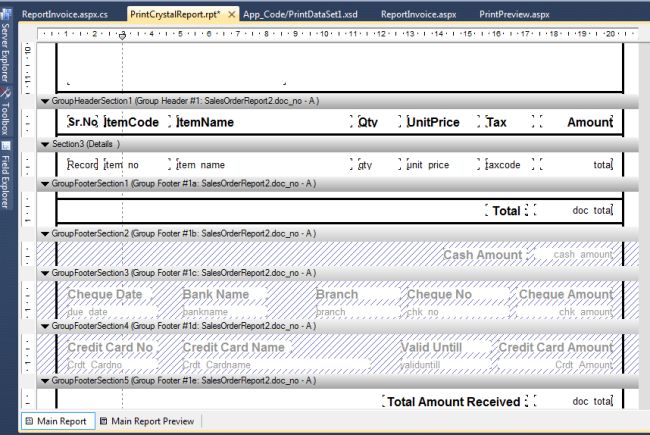
After binding with the Dataset, design the Crystal Reports report by dragging fields one by one to the Crystal Reports report.

Design crystal report

Finally your Design Page is ready as in the image.

Step 8
 
Now select Add New Item and name it NewWebform.aspx.

Step 9
 
Add the CrystalReportViewer to NewWebform.aspx. Do not choose a Report Source.

Step 10
 
Now write code to view the data in Crystal Reports depending on your condition.

Code Behind
For the preview of Crystal Report Data:
  1. using System.Data.SqlClient;  
  2. using System.Data;  
  3. using CrystalDecisions.CrystalReports.Engine;  
  4. using System.Configuration;  
  5. public partial class ReportInvoice: System.Web.UI.Page {  
  6.     SqlDataAdapter sqlda = new SqlDataAdapter();  
  7.     SqlCommand com = new SqlCommand();  
  8.     DataTable dt;  
  9.     PrintDataSet1 ds = new PrintDataSet1();  
  10.     ReportDocument rptDoc = new ReportDocument();  
  11.     protected void Page_Load(object sender, EventArgs e) {  
  12.         if (!IsPostBack) {  
  13.             bindCrystal();  
  14.         }  
  15.     }  
  16.     public void bindCrystal() {  
  17.         SqlConnection conn = new SqlConnection(ConfigurationManager.ConnectionStrings["con1"].ConnectionString);  
  18.         dt = new DataTable();  
  19.         dt.TableName = "Crystal Report Example";  
  20.         com.Connection = conn;  
  21.         string sql = "SELECT * from Table1 "// As per condition  
  22.         com.CommandText = sql;  
  23.         sqlda = new SqlDataAdapter(com);  
  24.         sqlda.Fill(dt);  
  25.         ds.Tables[0].Merge(dt);  
  26.         rptDoc.Load(Server.MapPath("PrintCrystalReport.rpt"));  
  27.         rptDoc.SetDatabaseLogon("Username""password", @"IPADDRESS\SERVERR2""DB_DatabaseName");  
  28.         rptDoc.SetDataSource(ds);  
  29.         CrystalReportViewer1.ReportSource = rptDoc;  
  30.     }  
  31. }  
Finally, the Print Preview is done in the Crystal Report Viewer.

Procedure to Print this Report from a client-side printer.

UI Design Side
Step 11
Add a HTML button (Print button) to the Webform, not asp:Button.
  1. <input id="btnPrint" type="button" value="Print" onclick="Print()" />  
Put Crystal ReportViewer in a <Div> tag as in the following:
  1. <div id="dvReport">  
  2.    <CR:CrystalReportViewer ID="CrystalReportViewer1" runat="server"AutoDataBind="true" ToolPanelView="None" EnableDatabaseLogonPrompt="False"PrintMode="Pdf" />  
  3. </div>  
Use JavaScript in a Design Page as in the following:
  1. <script type="text/javascript">  
  2.     function Print() {  
  3.         var dvReport = document.getElementById("dvReport");  
  4.         var frame1 = dvReport.getElementsByTagName("iframe")[0];  
  5.         if (navigator.appName.indexOf("Internet Explorer") != -1 || navigator.appVersion.indexOf("Trident") != -1) {  
  6.             frame1.name = frame1.id;  
  7.             window.frames[frame1.id].focus();  
  8.             window.frames[frame1.id].print();  
  9.         } else {  
  10.             var frameDoc = frame1.contentWindow ? frame1.contentWindow : frame1.contentDocument.document ? frame1.contentDocument.document : frame1.contentDocument;  
  11.             frameDoc.print();  
  12.         }  
  13.     }  
  14. </script>  
Step 12
Browser Side

Now you can run the report in the browser and see the following:


Finally, the printing is done perfectly.

Note: If you want to change the printer then click on the Change Button and you can save this file as a PDF from this option.


Note: If you want to not print the header and footer URL and PageNo and Page1of1, then UncheckHeaders and Footers option.

I hope you liked my article. If you have any query regarding this, feel free to comment for me.

how to catch client machine default printer name from web server

Find Printers Name Of client Side


I have a web application that accepts some data and saves it to the server. When the user selects the save option the same time I need a receipt to be printed and  I am not able to send the receipt to the default printer on the client machine. When I use the following code,

printname = pd.PrinterSettings.DefaultPageSettings.PrinterSettings.PrinterName
reportDocument1.PrintOptions.PrinterName = printname
reportDocument1.PrintToPrinter(1, False, 1, 1)

if I run from the Server using the IE brower it gives me error saying no default printer installed. But if I hard code the printer name I am able to print to the printer that is hard coded. But now the problem is when I access from the client machine through the browser i cannot print it to the printers installed on the client machine. Can any one please help me out.. It is quite urgent  requirement. Is there any other way to detect the client's default printer installed and send the report to the printer without displaying on the page and asking the user to select the File -> Print Option of the browser. Any idea to achive this is welcome.....